
Liqpay
Where to start and how to activate the profile on the side of the payment system
Before connecting a payment system, you need to fill in the information in the Settings sections:
General Information, Address, Social Networks and Messengers.
It is also important to have fully completed services and prices.
Liqpay
- Website: liqpay.ua
- Knowledge base: liqpay.ua/information/handbook
- Website requirements for connection: liqpay.ua/information/requirements
Configuration on the Wlaunch side
- You need to enter the keys from the selected payment system
- Specify the statuses that correspond to the booking flow
- Select the default cash register for reporting
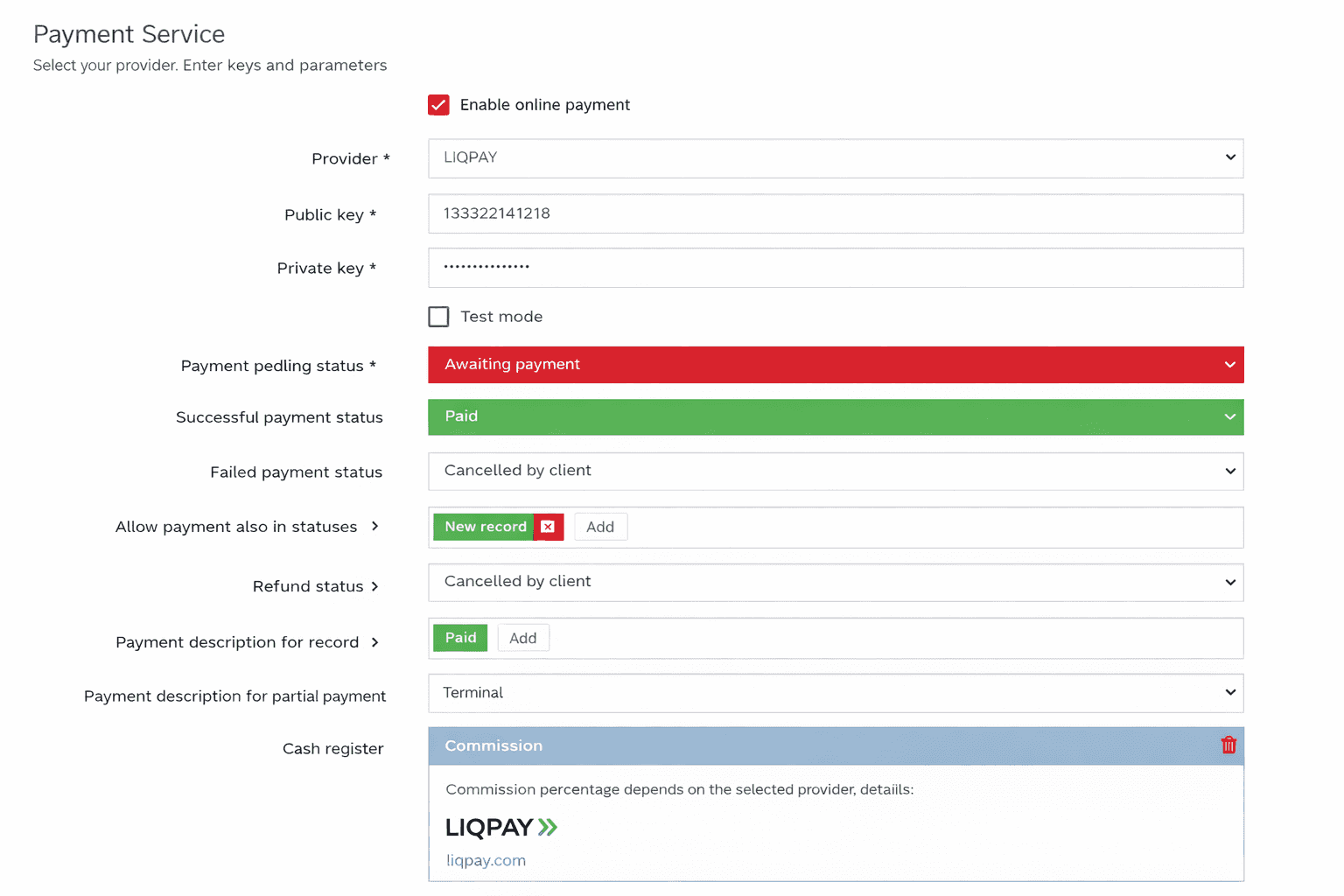
- Create rules according to which online payment is available
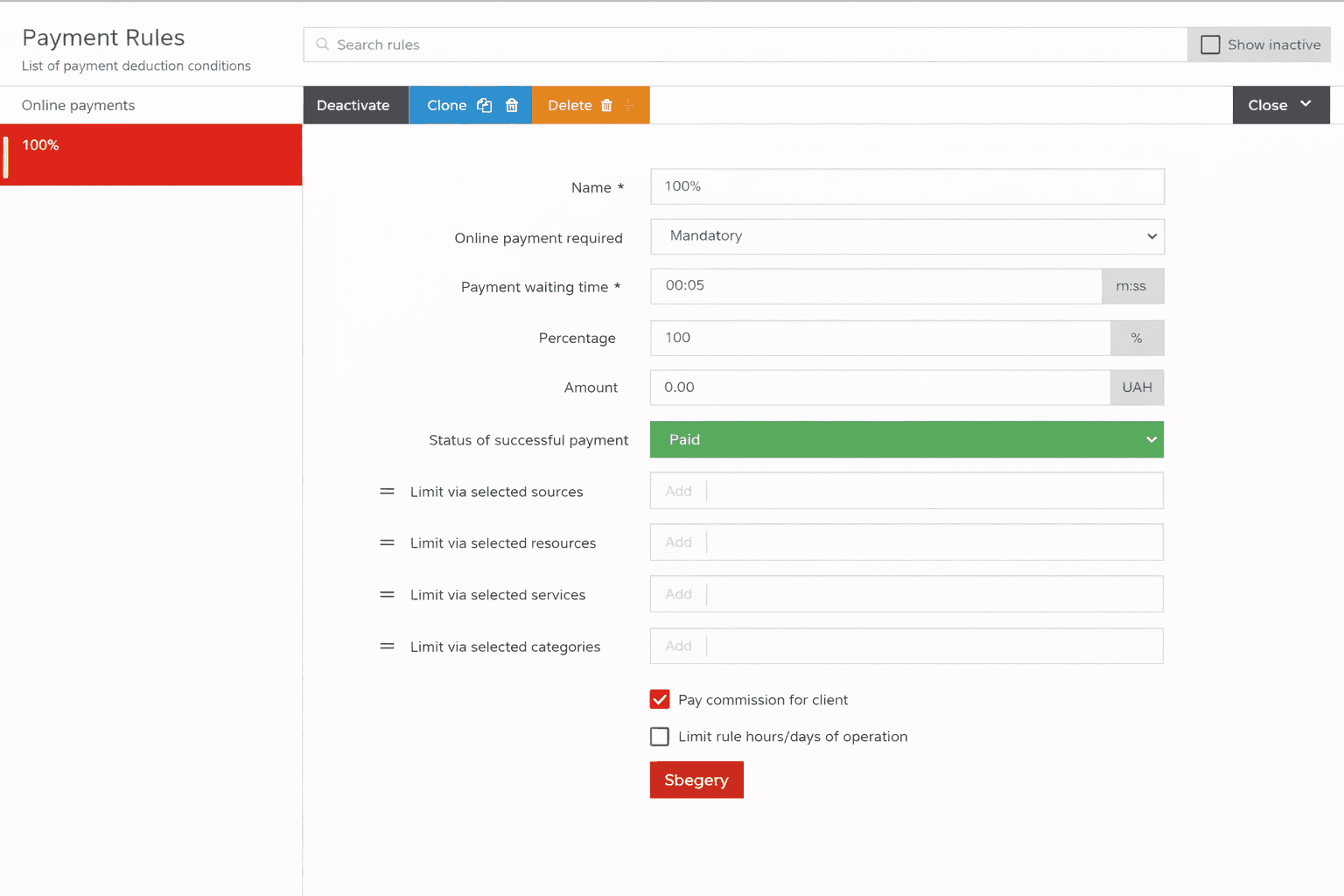
Fiscalization through PRRO
LiqPay payments can be fiscalized by LiqPay PRRO. Once a VAT rate is set in the LiqPay settings in Wlaunch, Wlaunch sends the goods themselves with each payment, so you do not need a separate goods catalogue in the LiqPay cabinet.
- In the LiqPay settings in Wlaunch (not in the LiqPay cabinet), choose the rate that applies to your items in the VAT rate for LiqPay PRRO field. While it is Not set, goods are not sent to LiqPay and LiqPay PRRO does not fiscalize payments
- Wlaunch sends the name, category and unit of each item automatically
- LiqPay PRRO issues the receipt on its side
Membership payment
- Currently, membership payments are not regulated by rules; all payment attempts follow the optional 100% payment rule