
Checkbox
How to connect and configure Checkbox for fiscalization
Checkbox
- Website: checkbox.ua
- Knowledge base: wiki.checkbox.ua
To get started, you need to configure the fiscalization service.
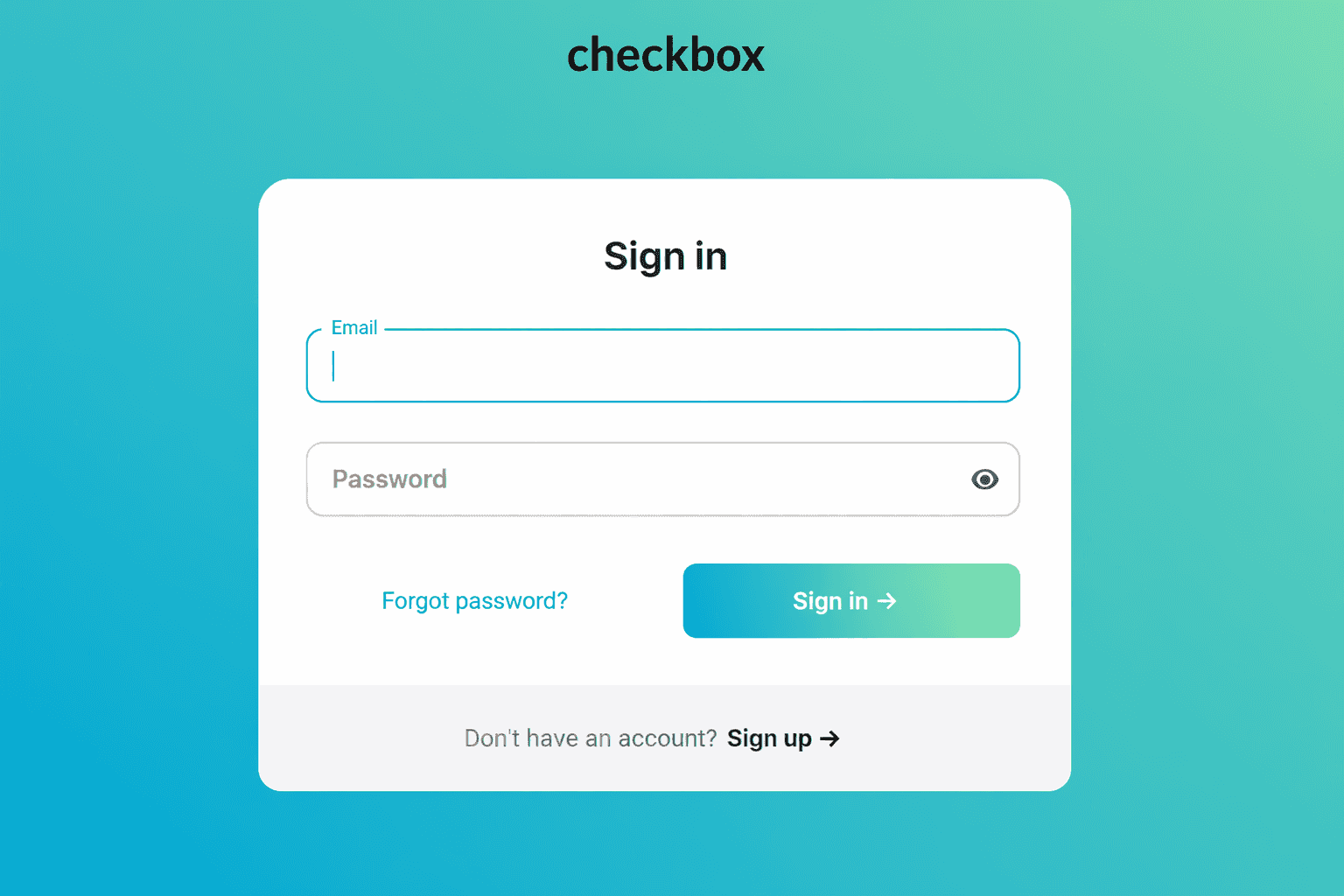
- You need to sign in to your account or register on the checkbox.ua website.
- Using the Checkbox portal, register your point of sale, cash register, and cashier.
- Set tax rates if you are a VAT or excise tax payer in the Tax Rates menu on the Checkbox portal.
- In the Cashiers section, select the option to launch Checkbox.Signature on a secure cloud service. Only legal entity seal keys (LLC or sole proprietor) are accepted for upload.
On the Wlaunch side

- Activate fiscalization on the Cash Registers - Fiscalization page.
- Add cashiers in the Cash Register - Fiscalization - Cashiers section.
- In the Cash Registers section, add a Cashier for fiscalization to the desired cash register and select the cash register type (Non-cash or Cash payment, to pass this parameter to the fiscalization service).
- Now when you process a payment through this cash register, the Fiscalize function will be available.
- You can also view the fiscalization status for various payments in the Cash Documents section.
Online payment
If you accept payments only through the Online Payment module, we recommend connecting fiscalization on the payment provider's side.