
Permissions - custom groups
How to create custom permission groups for users
How to create a new group?
To create a new permission group, go to:
"System Access -> Permissions" and click the "Create" button.
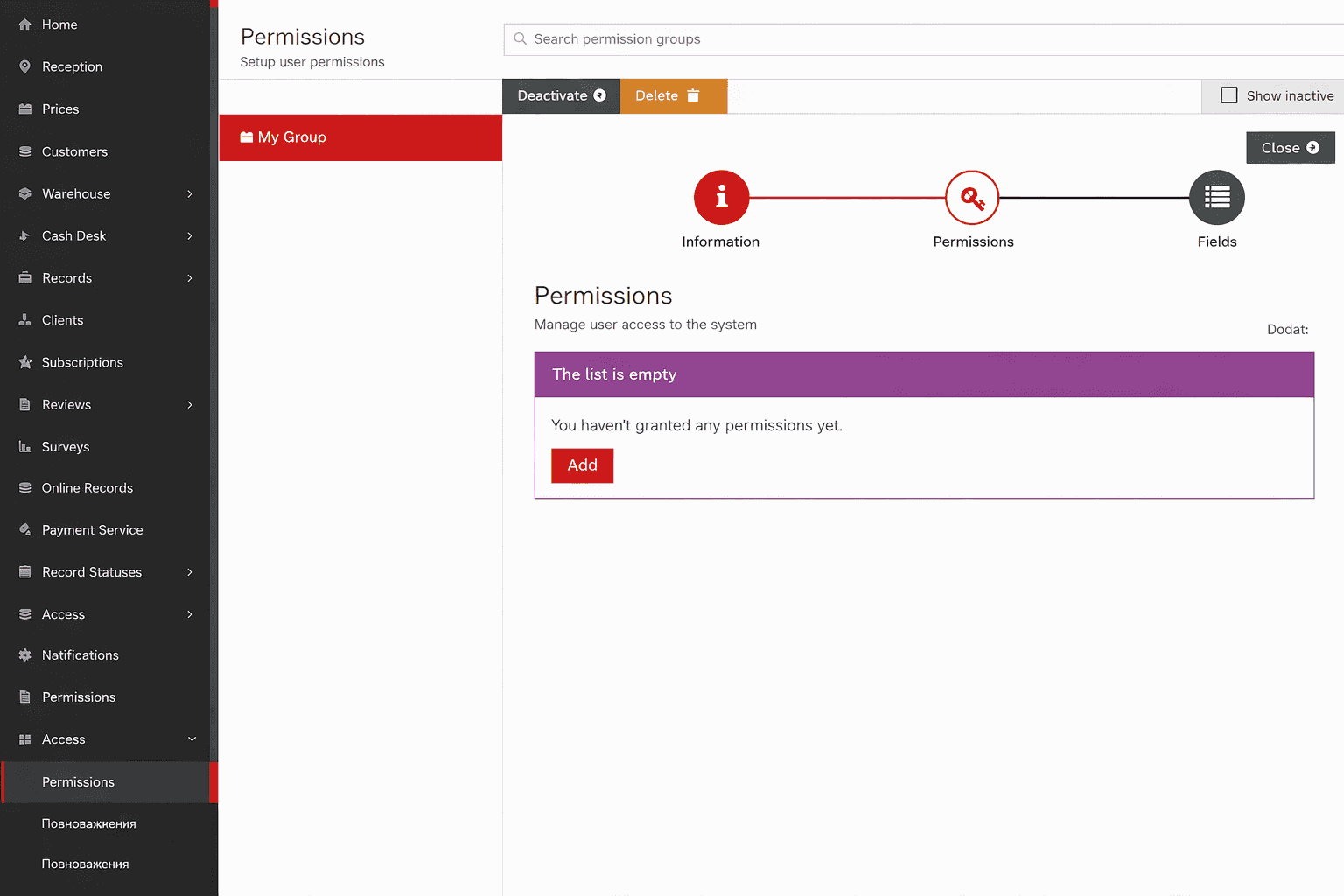
At the creation stage, you only need to specify the group name. All other settings will be available after saving.
Setting types
After creating the group, you can add two types of rules:
- Access rights - regulate access to entire sections (creating, viewing, editing).
- Fields - manage access to individual form fields (for example, hiding a client's phone number).
Working with access rights
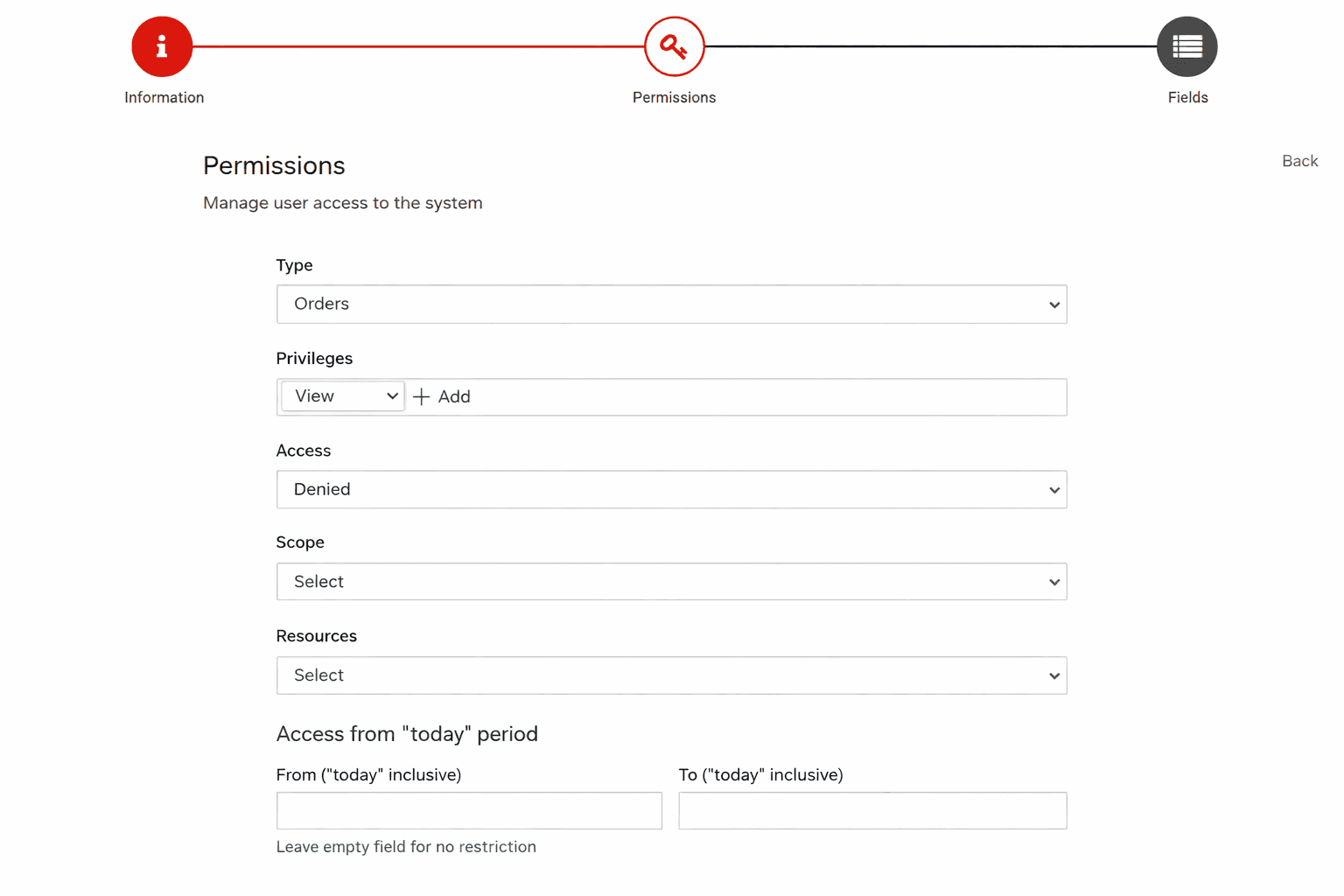
When adding a new rule, you can choose one of the available types. For example:
- Reviews
- Orders
- Bookings
- Reports (general, client, inventory, financial)
- Cash register (balance, documents, transactions, categories)
- Clients (bookings, messages)
- Events
- Services (resources, service protocols, branches)
- Resources (working hours, services, branches)
- Inventory (balance, documents, suppliers, products)
- Statistics
Selecting an action
Next, a functional action is selected:
- View
- Create
- Edit
- Import
- Export
- etc.
Access option
After that, the access type is determined:
- Allowed
- Prohibited
Scope of application
Depending on the selected permission type, an additional "Scope of application" field appears, which specifies where exactly the rule applies. For example:
- branches
- resources
- statuses
Access to a period relative to "today"
For some permission types, the option "Access to a period relative to today" is available. It allows restricting the viewing of bookings or documents within a specific time window.
Examples of prohibiting rules:
From -10 / To 10- the user does not see data within the range of +/-10 days relative to the current time.From empty / To 10- access will only be open to bookings later than the next 10 days.From 2 / To empty- the user sees all bookings, but no further than 2 days into the future.
Completing the setup
After saving the rule, you can:
- Assign the group to users
- Or use ready-made group templates that already provide typical restriction scenarios
This allows you to quickly and flexibly manage access within the company.