
Membership freeze
Configuration options and example of use
You can configure membership freezing both in templates and in each individual sold membership.
Freeze settings
To activate the feature, check the "Allow freezing" checkbox in the advanced settings.
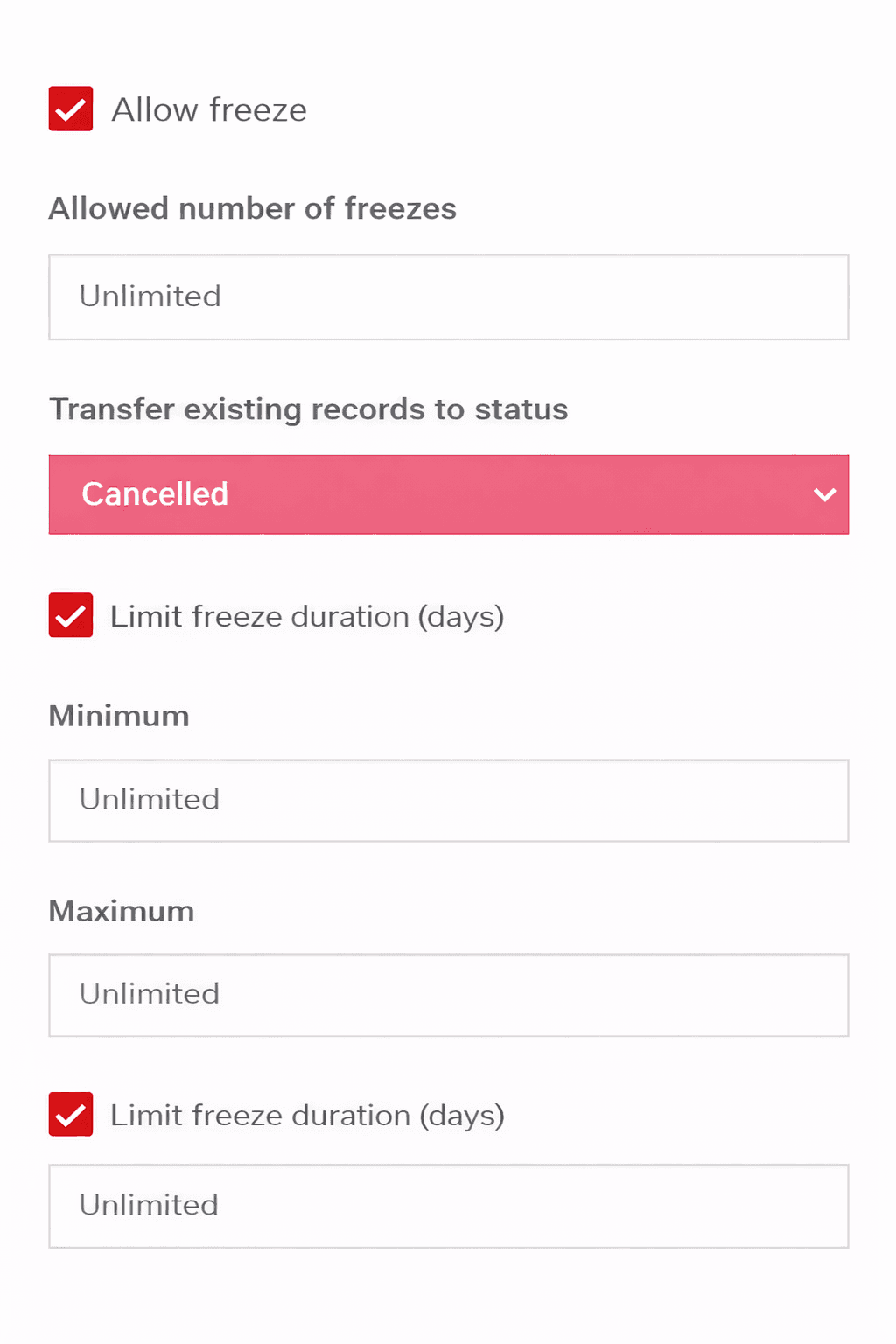
This activates a list of options available for configuration:
- Allowed number of freezes - this number indicates how many times the membership can be frozen during its validity period.
- Move active bookings to status - this is the status to which all bookings falling within the freeze period will be moved.
- Limit freeze duration (days) - if you need to limit the freeze duration, you can enable this toggle.
- Minimum - the minimum number of days for which the membership can be frozen.
- Maximum - the maximum number of days for which the membership can be frozen.
As mentioned above, you can configure these options both for an individual client membership and for a template.
Freezing by the administrator
In the membership details, the user sees either a Freeze or Unfreeze button depending on the current status.
On the freeze screen, you choose one of the following methods:
- Indefinitely - the freeze will be effective from the selected date for an unlimited time. This option is not available if you have limited the freeze duration.
- From today - the period starts today, and you select the number of days it will last.
- For a period - a flexible format where you select the "from - to" dates for the freeze.
On the unfreeze screen, you simply specify the date from which to unfreeze the membership.
You can also view the Action History, which shows when and what freeze-related actions took place.
Freezing by the client
The client has the same freezing functions as the administrator for convenient membership management.