
Telegram notification
How to get started with a telegram bot
How to set up Telegram notifications
Wlaunch allows you to set up Telegram notifications for convenient interaction with the platform.
1. Connecting for a Specialist (resource)
- Go to the resource section to which you want to connect notifications.
- Click the "Generate Telegram connection link" button.
- Open the generated link and click the "Start" button in the Telegram bot.
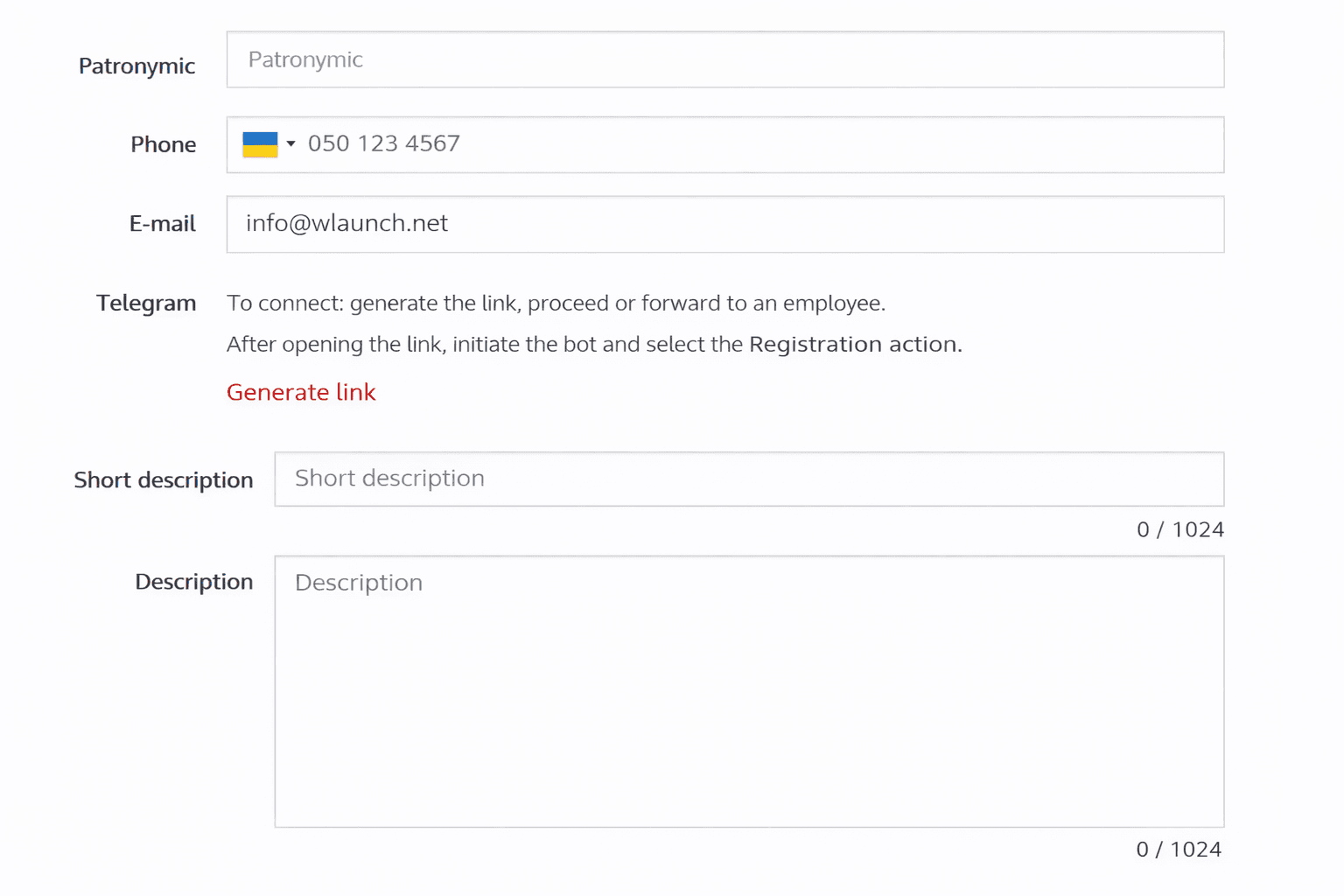
After connecting, the mobile phone number linked to Telegram will be displayed next to the resource in the Wlaunch system.
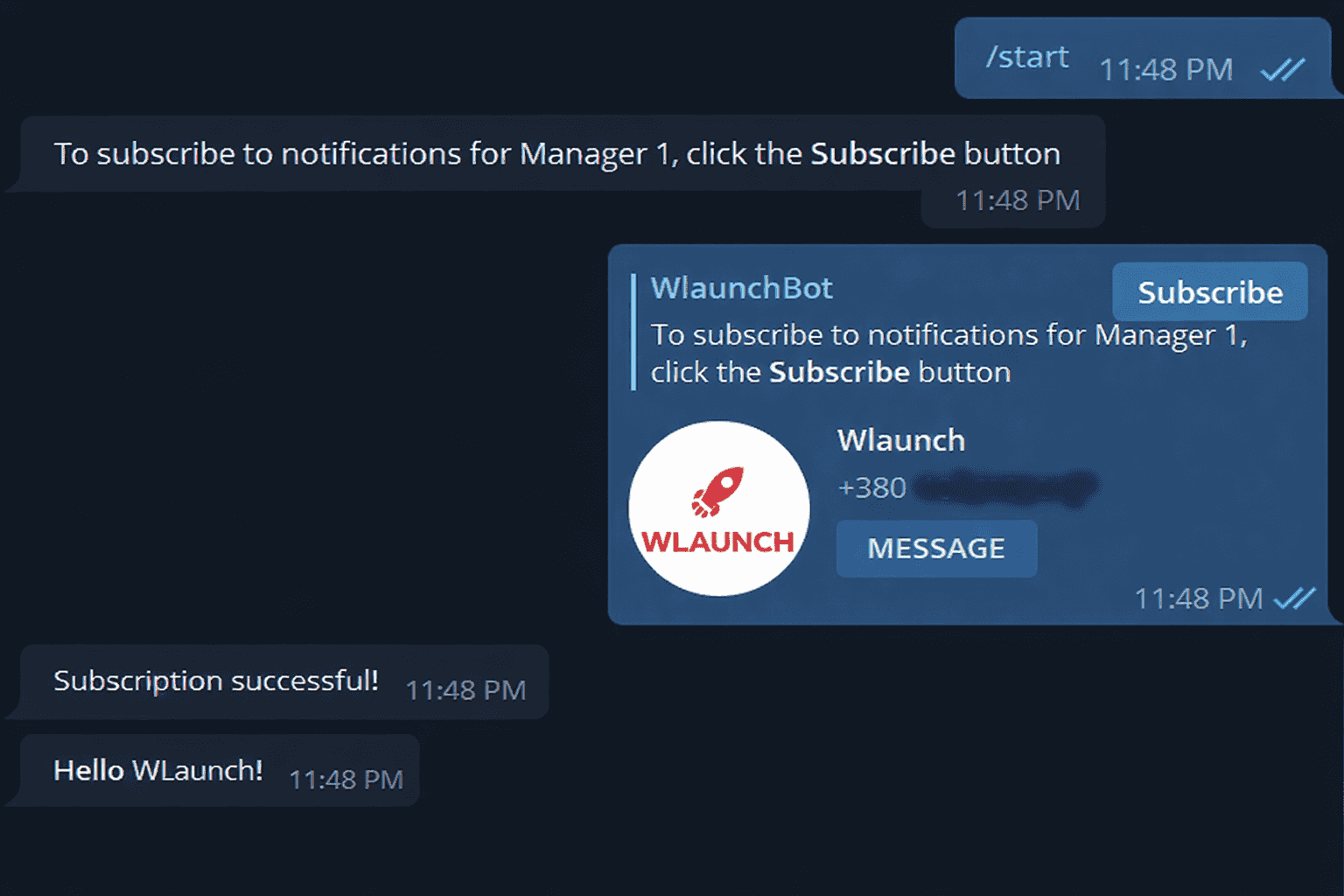
If the employee does not have access to the system, the administrator generates the link and provides it to the employee for connection.
2. Connecting for an Administrator (branch)
- In your account, go to the "Mailings" > "Settings" section.
- Click the "Generate Telegram connection link" button.
- Open the generated link and click the "Start" button in the Telegram bot.
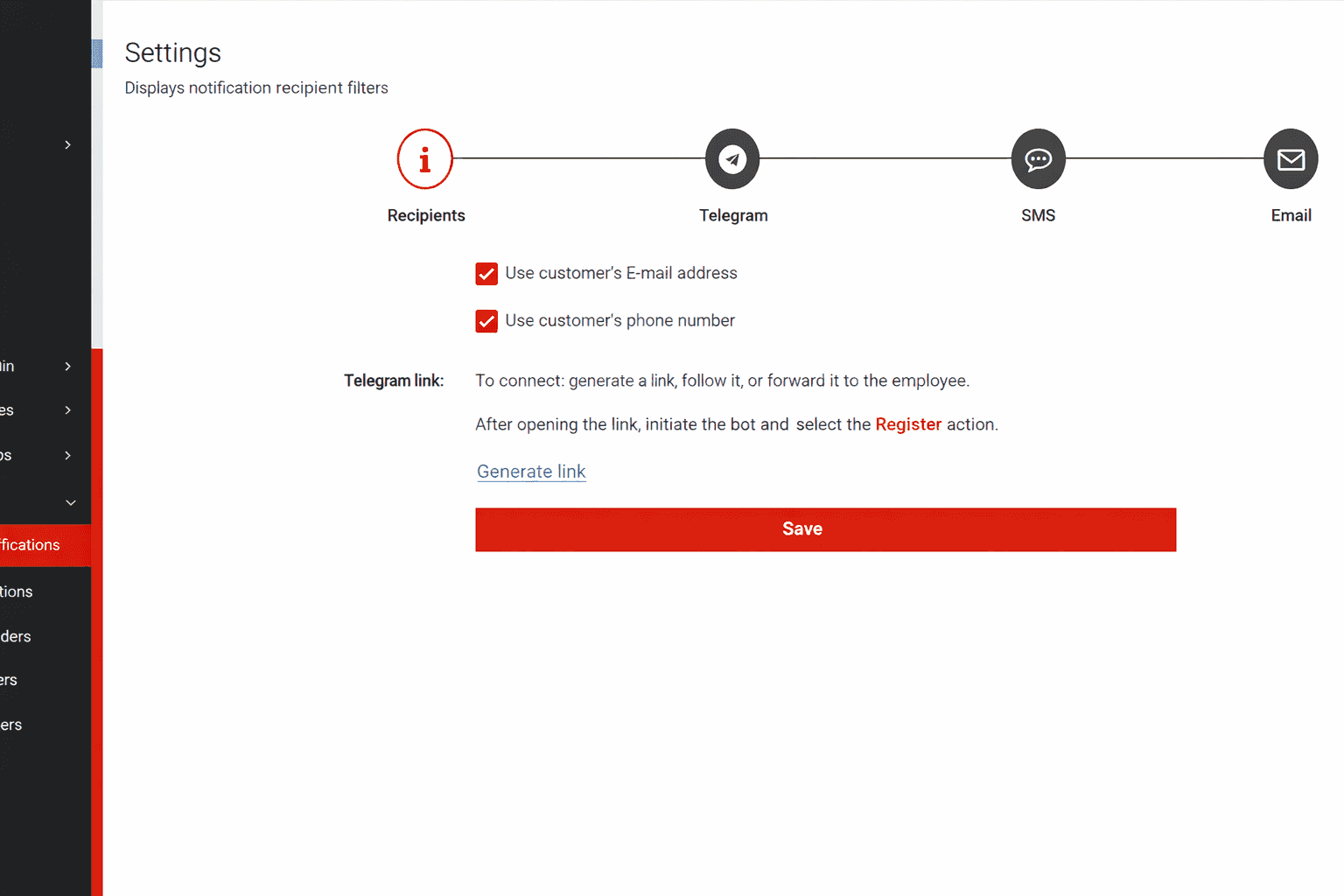
After this, the mobile phone number linked to Telegram will appear in the mailing settings. You can add multiple contacts for mailings within a single branch.
3. Connecting for a Company client
Clients can independently connect Telegram to receive notifications about their appointments, view the status of active memberships, and leave reviews.
To connect, the client needs to:
- Follow the link: https://t.me/WlaunchBot
- Click the "Start" button.
- Click the "Register" button in the bot.
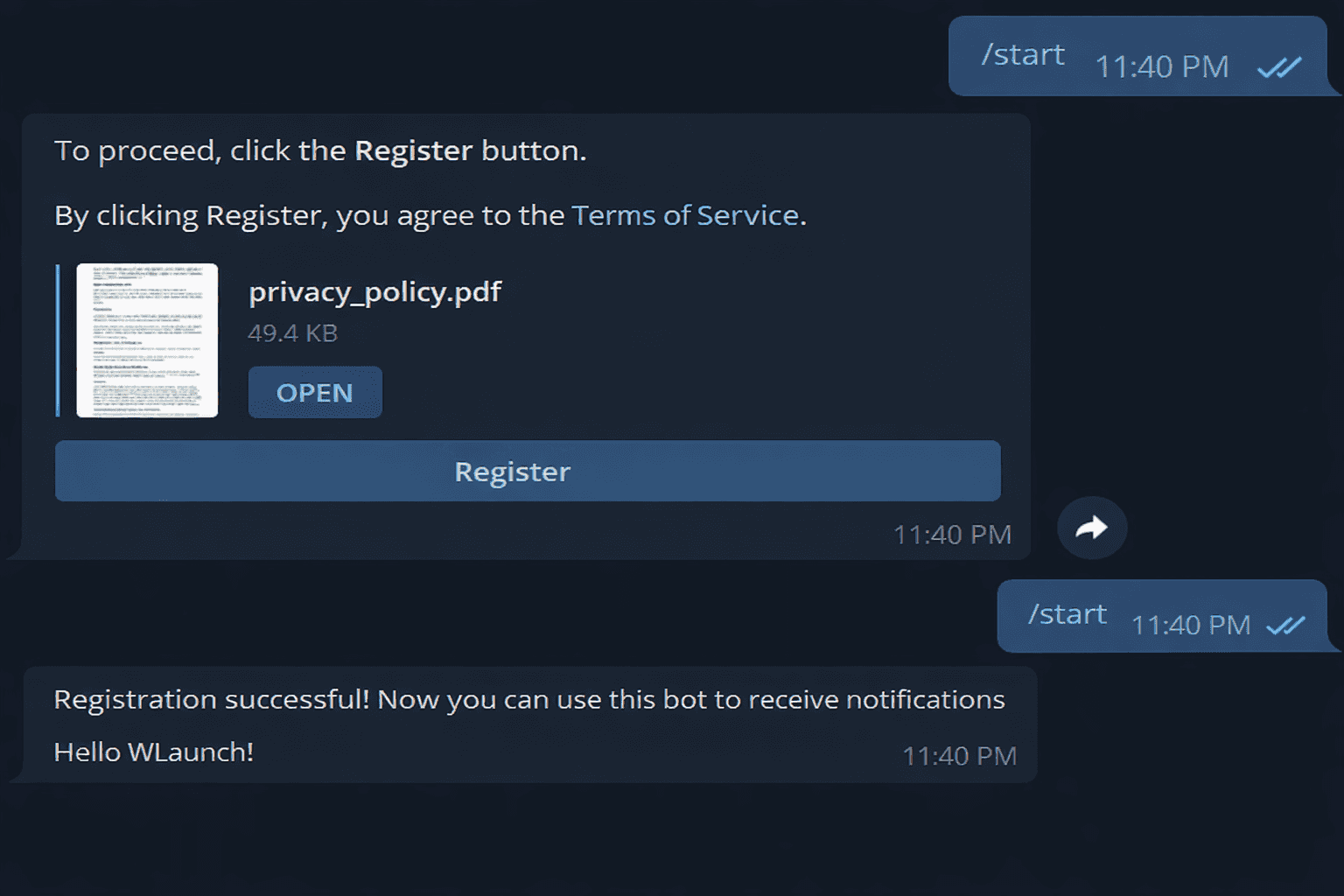
A link to connect Telegram will also be available to the client after making an online booking.
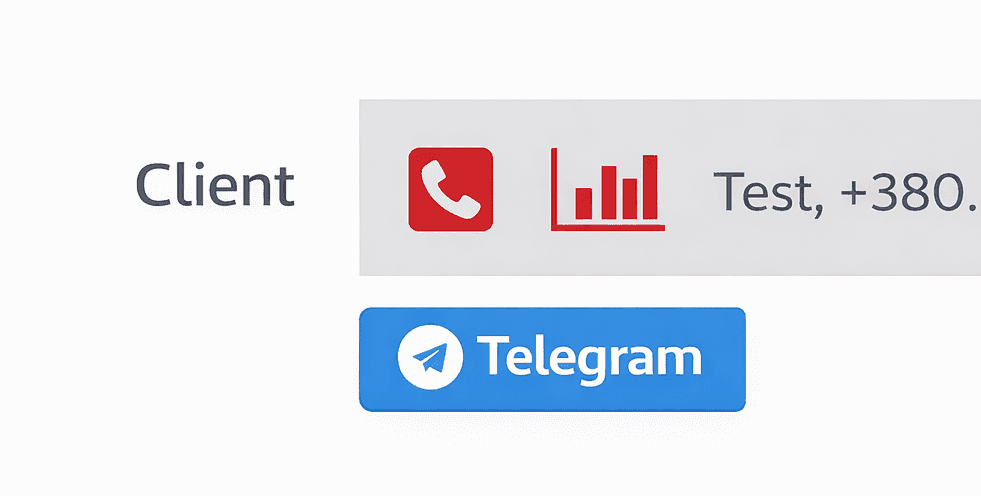
After connecting, the appointments section and client database in your system will show that the client has already set up this integration.
To learn more about creating and sending mailings manually or automatically, see the following article: