
Memberships
How to create and manage memberships and gift certificates
Membership and gift certificate functionality is provided through one of the extended feature modules called "MEMBERSHIPS".
Templates
Different types of memberships are used for different tasks. The photo below shows an example of templates with different values.
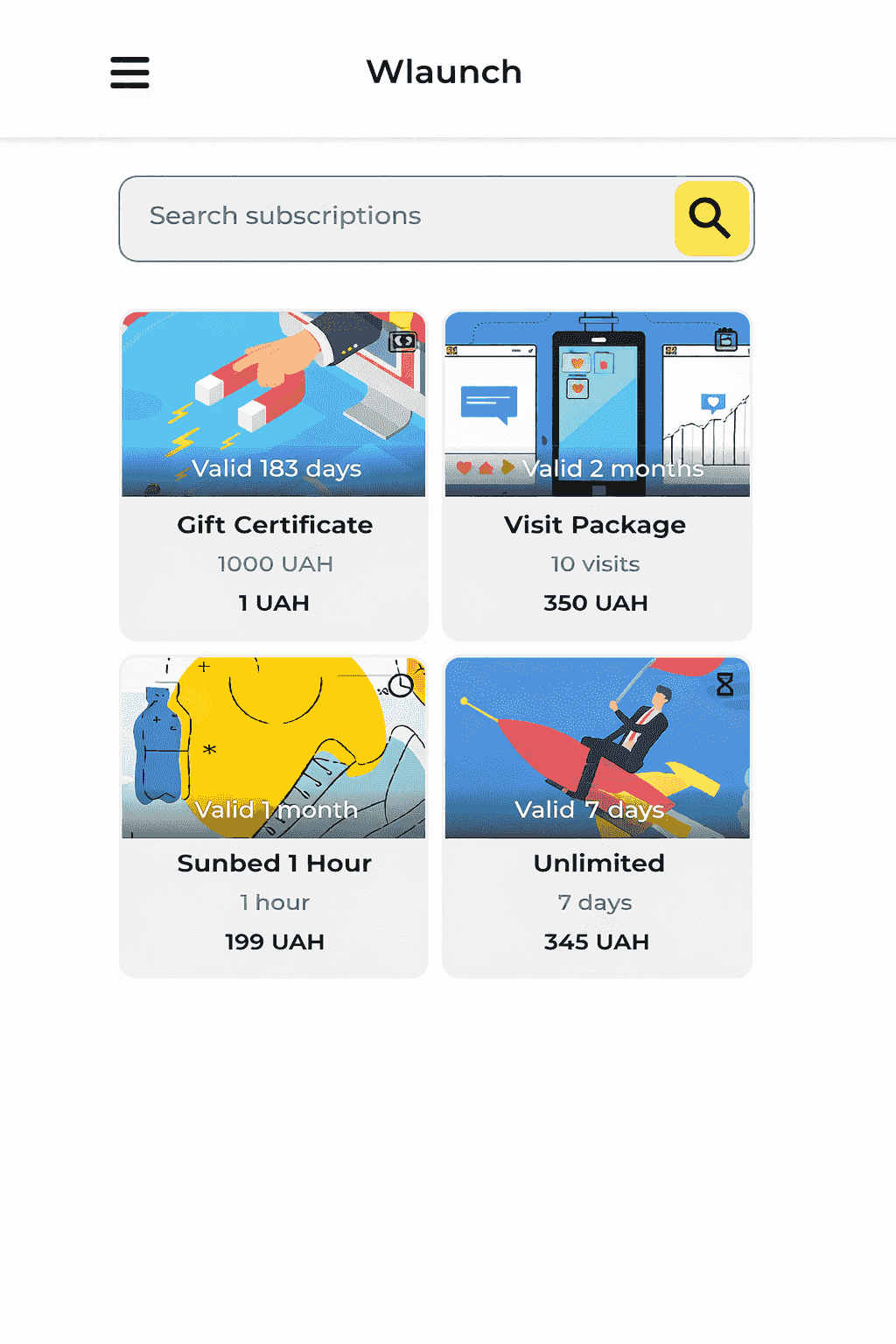
For convenient future use, we recommend creating the membership templates applicable to your business via the Memberships - Templates tab.
In Templates, you should select the type, the services it will apply to (or leave the corresponding field empty if it applies to all services), and specify the validity period. Then, through the Memberships - List section, create a membership for a specific client by selecting the appropriate template and filling in the other details.
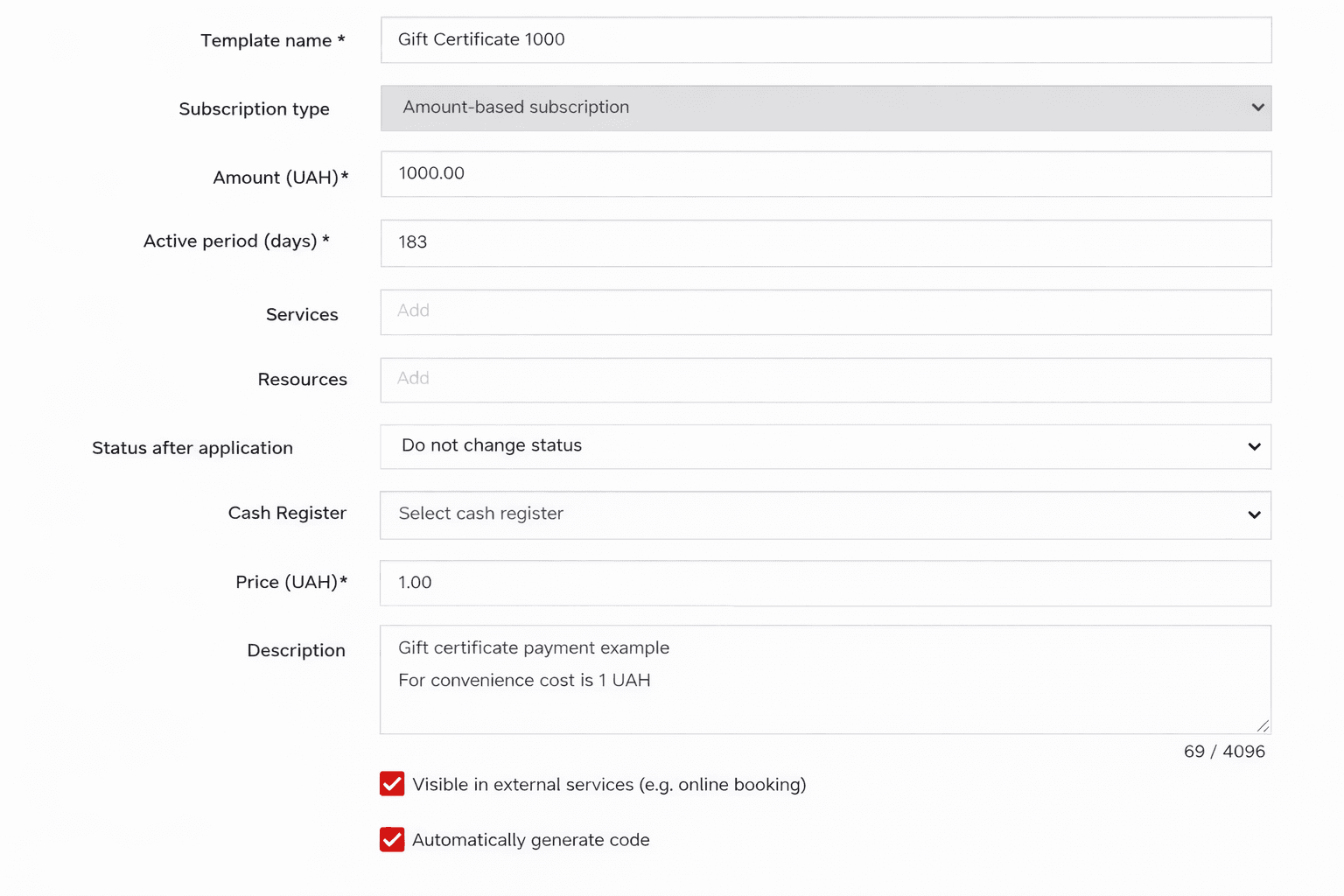
Applying a membership
To activate a membership when entering it manually, you need to check the "Active" checkbox and process the payment.
Clients can also purchase memberships online. To enable this, activate the "Allow membership sales" option in the Online Booking Settings and connect a payment system so that clients can not only select a membership but also pay for it.
To use a membership in a booking, check the "Use membership" checkbox and save the changes.
The system will find and apply the membership automatically. Alternatively, place the cursor under the "Select client membership" line, choose the appropriate one, and save the changes.
If a client made an online booking and has a valid membership for the service, the membership will be applied automatically.
In the booking details, you can view information about the membership that was used for that booking.